Password Manager
See official wiki for detailed instructions: https://github.com/dani-garcia/vaultwarden/wiki
Securing your credentials
It is important that you keep your access credentials secure. This is why the usage of a the Rekonas Password Manager is mandatory for all employees.
See Thread Model for more information about the risks we are looking to mitigate.
Rekonas Password Manager
Our password manager solution uses a web service called Vaultwarden. This is why we might also refer to the password manager as Vaultwarden throughout this guide.
We are using the browser extension and desktop client from the company Bitwarden.
However, we are not using any services from Bitwarden Inc. and you will never have to enter your details on the Bitwarden website. Our service will always be available under our own domain: https://pw.rekonas.com .
If you receive suspicious emails or get asked to enter your credentials on a website other than the one shown in this guide notify the IT service desk!
Activate your Account
You will receive an invite to set up your account via email to your Rekonas email inbox.
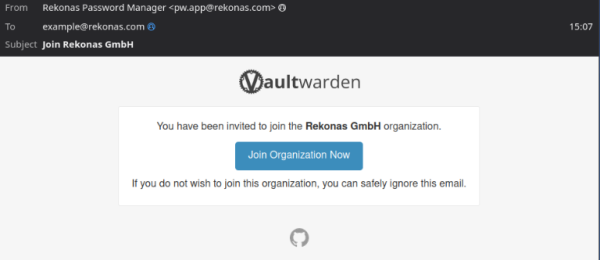 You should receive a similar invite message to your mailbox.
Follow the instructions in this message. It is important that you choose a strong password that you do not use for any other service. Do NOT use your email password here!
Currently it is not possible to use your email or myRekonas login for this service.
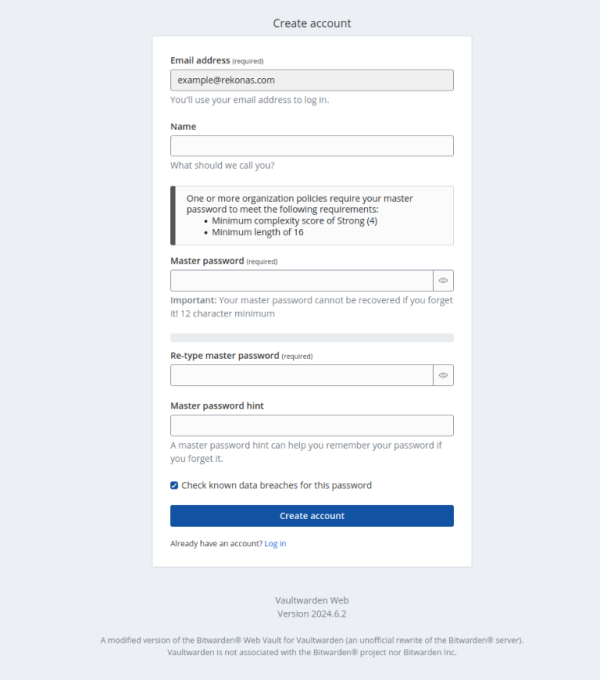
After submitting the sign-up form you will be redirected to the login screen. Before you can login, youneed to confiorm your email address. An email with a confirmation link should have been send to your inbox in the meantime.
On your first login, open your account settings and send your personal account fingerprint phrase to admin@rekoans.com. The It service will then be able to confirm your account and send you a notification via email once your account is ready.
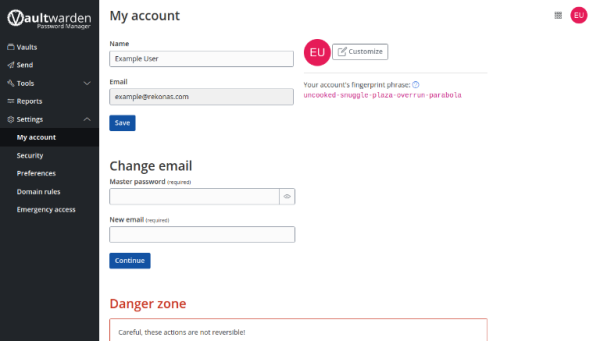
Once your account is confirmed, you can use the password manager via the web client or proceed to set up the desktop client.
Usage
You can use the password manager from the browser by visiting: https://pw.rekonas.com.
Log in using the credentials you configured during the setup process.
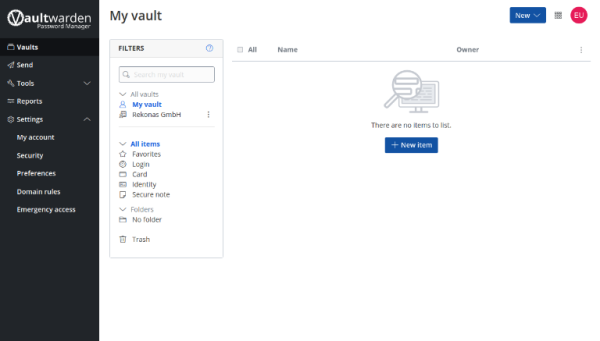 This is what the landing page of your account looks like on your first login after it has been confirmed.
Concepts
Every user has a personal “vault” called “My vault” that is only visible to them.
Inside this vault, they can store “items” that can be of the following types:
- Login: Default type for login credentials and passwords.
- Card: For credit card details
- Identity: For addresses and contact details (handy for web form autofill)
- Secure Note: For unstructured text notes. Use this for confidential notes.
Items can be grouped in “folders” or easier organization. It is always possible to filter them using the search function.
Secrets shared within teams can be saved inside an “organization vault”. In our case, every user has access to the “Rekonas GmbH” organization. Within the organization, items can be grouped into “collections”. Access rights can be specified individually for each collection by its owner or managers. While users can still use folders to organize shared secrets from the organization within their account, these folder structures are not synchronized to other users. Hence, folders are only for personal organization.
Browser extension
Install the browser extension to quickly fill passwords into web forms. Download the extension here: https://addons.mozilla.org/en-US/firefox/addon/bitwarden-password-manager/?browser=firefox
Todo: document extension setup
Desktop Client
Todo: document desktop client setup
Adding a new password
From the extension
- Click ion the extension icon
- Click on + Add Item
- Fill in details:
- Select Type Login
- Set Name of Item
- Generate a password by clicking on the circular arrow and then Select once you are happy with the generated password
- Select a folder under which to organize the item
- Select the correct ownership:
- Either your email address for personal items
- Or Rekonas GmbH for shared items
- Save the item
From the web client
Todo: document adding item from web client
Adding an attachment to an item
Sometimes it is necessary to add documents containing confidential information to the password manager (e.g. a recovery sheet for an account). This can be achieved by clicking in the “three dots” menu next to an item an selecting “Attachments”. This allows you to upload documents that will then be attached to the item.
Do not store documents with recovery codes on your laptop or in your cloud drive.
Two-Factor Authentication
The password manager can be used to store two-factor authentication tokens. While this might be counter intuitive, it is in most cases advisable to use the password manager to store the two-factor authentication token along with the password. Do not use your private phone to store the token.
How to add a two-factor authentication token
Services that allow you to enable two-factor authentication (or 2FA) usually display a QR code that can be scanned with a phone. As we are not using a phone, we need the token as a string instead. If the token is not displayed next to the QR code, look for a button to switch to “manual mode”or something similar. If you cannot get the token ask the IT desk for assistance.
Threat Model
With every security measure, it is necessary to establish the relevant threat model.
Our password manager protects us against the following risks:
- loss of credentials through synchronization & backups
- brute-force attacks by eliminating the need to memorize passwords and establishing a strong password policy
- reuse of leaked passwords by making it easy to generate a new password for each service
- unauthorized access to passwords by encrypting vaults with user master password and organization key
- leaking of passwords by establishing a way to securely share credentials between users
The password manager does not protect us in the case that:
- an attacker has access to the users machine while the password vault is unlocked
- an attacker has access to the users master password and can get hold of a copy of the vault
FAQ
What should I do if I forget my vault master password?
Recovering your password is a manual process that can be done by the IT department in an emergency case.
I accidentally deleted an item, how can I recover it?
Deleted items will be kept in the trash bin for 30 days after which they will be permanently deleted.
I got a PDF file with confidential information that I need to store.
You can attach files to item in your vault. Either create a new item, or find the matching item in your vault. Click on the “three dots” icon next to the item and select “Attachments”. You can now upload the file. Make sure to delete the file from your system after you verified that it has been properly uploaded and was synchronized (Check on another client).
Can I use the password manager for personal passwords outside of my job?
You should only use the Rekonas password manager for work related credentials. Do not install the client on a private device.